Showing posts with label computer. Show all posts

Friday, 28 March 2014

Check Your Antivirus is Real or Fake

By With No comments:
Hello Friends ! Here We again come with one awesome PC Tricks, We are very happy to share this tricks with you and also we share more and more awesome tricks, today we have one new awesome trick to check your Antivirus is real or fake, this tricks will check that your antivirus is Real Or Fake. If your Antivirus is not Work or Fake then we can Find easily throw this Awesome trick, so what you waiting for Let's Start!


Fake+Real+Antivirus

We Go with step by step :-

Step 1) First of all open notepad, or you can use shortcut key WINDOWS+R to open notepad.



Step 2) after open the notepad copy below code and paste into notepad.
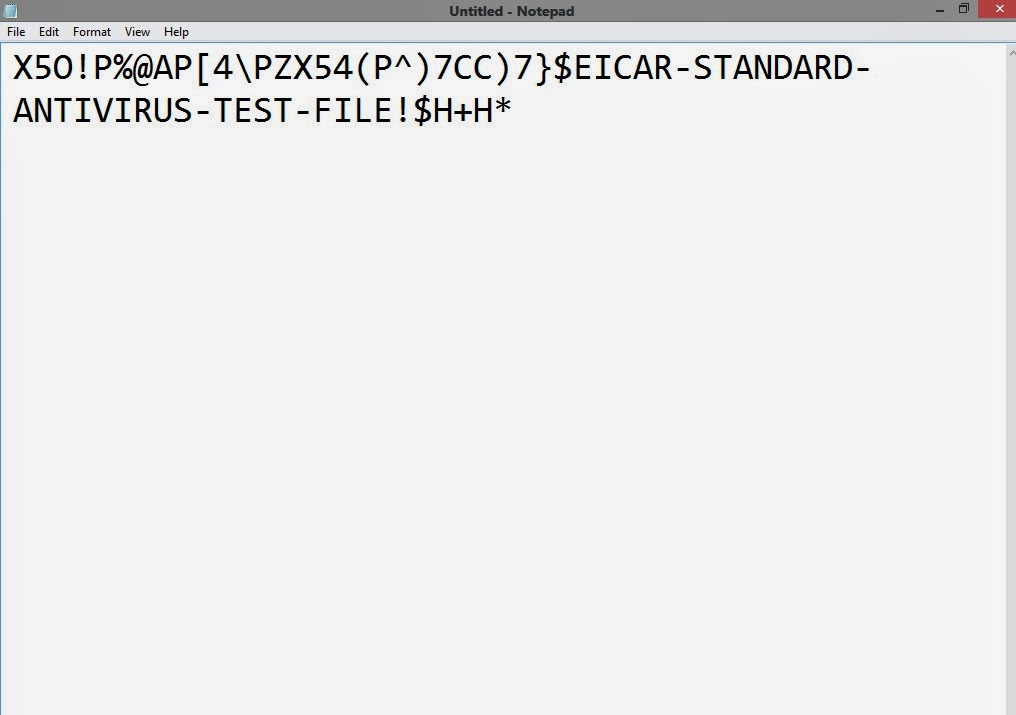

X5O!P%@AP[4\PZX54(P^)7CC)7}$EICAR-STANDARD-ANTIVIRUS-TEST-FILE!$H+H*


Fake+Real+Antivirus


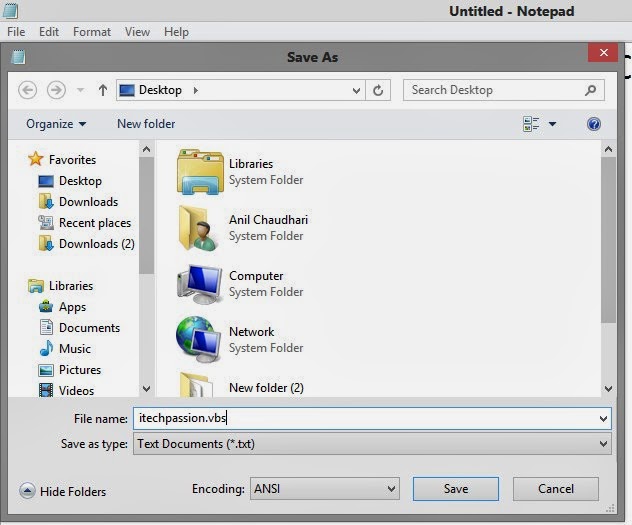
Step 3)After that save the file or press ctrl+s shortcut to save the file , file must be save .vbs extension on your desktop, here we save file as ITP.vbs on the desktop.
Fake+Real+Antivirus


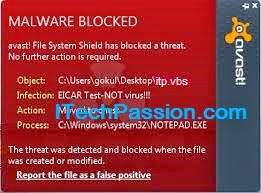
Step 4)now if your antivirus is real then it will allow you to save this .vbs extension file on your desktop otherwise it will detect as virus and delete it and not allow to save on desktop.
Fake+Real+Antivirus


So Friends this is simple trick to check your Antivirus is Real or Fake, So Share this Trick to your Friends, and safe your PC With the use of Real Antivirus.

->Top Free Antivirus 2014 for Windows 8


Saturday, 8 March 2014

7 Best Notepad Tricks to scare your Friends

By With 1 comment:
Notepad is a simple text editor, We all know we use it to write some information. it is work as a text editor and also We seen in our last post how to convert text into audio with using Notepad.Today We also Come With Some awesome Notepad Trick that will help you to scare your Friends.

Notepad+Tricks


>Below Top 7 Best Notepad Tricks will Help you to scare your Friends.

1) Continuously Pop out CD or DVD Drive:

This Trick is So Cool that Will Continuously Pop Out your CD or DVD Drive, so to Perform This Trick Follow Bellow Step

>First Open Notepad.
>Copy The Bellow Code and Paste into Notepad.

Set oWMP = CreateObject("WMPlayer.OCX.7")
Set colCDROMs = oWMP.cdromCollection
do
if colCDROMs.Count >= 1 then
For i = 0 to colCDROMs.Count - 1
colCDROMs.Item(i).Eject
Next
For i = 0 to colCDROMs.Count - 1
colCDROMs.Item(i).Eject
Next
End If
wscript.sleep 5000
loop


>Now Save this Notepad File as itechpassion.vbs
>Now Send it to your Friends.


 2) Toggle Caps Lock button On-Off Continuously : 

This Trick Will Toggle Caps Lock button On-Off Continuously, so to Perform this Trick Follow Bellow Step.

>First Open Notepad.
>Copy The Bellow Code and Paste into Notepad.


Set wshShell =wscript.CreateObject("WScript.Shell")
do
wscript.sleep 100
wshshell.sendkeys "{CAPSLOCK}"
loop


>Now Save this Notepad File as itechpassion.vbs
>Now Send it to your Friends.


3)Trace keyboard to make it type continuously


This Trick Will Trace keyboard to make it type continuously, so to Perform This Trick Follow Bellow Step.

>First Open Notepad.
>Copy The Bellow Code and Paste into Notepad.


Set wshShell = wscript.CreateObject("WScript.Shell")
do
wscript.sleep 100
wshshell.sendkeys "Thanks For Visiting ITechPassion"
loop


>you can Change above text "Thanks For Visiting ITechPassion" and also add your own text or another text.
>Now Save this Notepad File as itechpassion.vbs
>Now Send it to your Friends.


4)Hit Enter Key Continuously :


This Trick Will Hit Enter Key Continuously, so to Perform This Trick Follow Bellow Step.

>First Open Notepad.
>Copy The Bellow Code and Paste into Notepad.


Set wshShell = wscript.CreateObject("WScript.Shell")
do
wscript.sleep 100
wshshell.sendkeys "~(enter)"
loop


>Now Save this Notepad File as itechpassion.vbs
>Now Send it to your Friends.


5)Type any message in notepad automatically


This Trick Will Type any message in notepad automatically, so to Perform This Trick Follow Bellow Step.

>First Open Notepad.
>Copy The Bellow Code and Paste into Notepad.


WScript.Sleep 1800
WScript.Sleep 1000
Set WshShell = WScript.CreateObject("WScript.Shell")
WshShell.Run "notepad"
WScript.Sleep 100
WshShell.AppActivate "Notepad"
WScript.Sleep 500
WshShell.SendKeys "tha"
WScript.Sleep 500
WshShell.SendKeys "nks"
WScript.Sleep 500
WshShell.SendKeys " fo"
WScript.Sleep 500
WshShell.SendKeys "r v"
WScript.Sleep 500
WshShell.SendKeys "isi"
WScript.Sleep 500
WshShell.SendKeys "tin"
WScript.Sleep 500
WshShell.SendKeys "g i"
WScript.Sleep 500
WshShell.SendKeys "Tec"
WScript.Sleep 500
WshShell.SendKeys "hpa"
WScript.Sleep 500
WshShell.SendKeys "ssi"
WScript.Sleep 500
WshShell.SendKeys "on."
WScript.Sleep 500
WshShell.SendKeys "com"
WScript.Sleep 500
WshShell.SendKeys ":) "


>Now Save this Notepad File as itechpassion.vbs
>Now Send it to your Friends.


6)Hit Backspace Key Continuously : 


This Trick Will Hit Backspace Key Continuously, so to Perform This Trick Follow Bellow Step.

>First Open Notepad.
>Copy The Bellow Code and Paste into Notepad.


MsgBox "Go back a few steps"
Set wshShell =wscript.CreateObject("WScript.Shell")
do
wscript.sleep 100
wshshell.sendkeys "{bs}"
loop


>Now Save this Notepad File as itechpassion.vbs
>Now Send it to your Friends.


7)Show a error message and shut down friends computer


This Trick Will Hit Backspace Key Continuously, so to Perform This Trick Follow Bellow Step.

>First Open Notepad.
>Copy The Bellow Code and Paste into Notepad.


@echo off
msg * I don't like you Man
shutdown -c "Error! You are too stupid!" -s


>Now Save this Notepad File as itechpassion.vbs
>Now Send it to your Friends.


Conclusion 


>These tricks will not harm your computer, but if you want to stop them then simply restart your computer or else Open Task Manager ( Ctrl+Alt+Del), go to processes tab and end the process wscript.exe.

So this Are the Some Cool Notepad Tricks To Scare your Friends, Hop You Like One of the Tricks From above List, Please Share This all Tricks to Your Friend. Until That time Happy Surfing. 

Thursday, 6 March 2014

Convert Text into Audio Using Notepad

By With No comments:
Hello Friends, Today I Am Going To Explain You Simple Tricks How to convert a text into audio using Notepad. This is One Simple Notepad Tricks but many people don't know, How can we Convert Text into Audio! but We Can Convert our text into audio easily and also we did not need to use any software just type some simple code into notepad and save it and run it. 


Convert-Text-Into-Audio

Thursday, 13 February 2014

Best Hard Drive Space Analyzers

By With No comments:
Mostly People Face Some Problem Like They Can not add More Data into their Hard Drive and can't download a movie, or can't install some games because of Hard Drive is Full or not more Space to add more Data into Hard Drive. so you have no idea about what you delete to make some room to add more data. so that time you think there is any tool that will help you to Give me some more Hard Drive Space! Yes, there are Some Free Tools Which will analyzing file size and help you to make Some more Space in Hard Drive , So Today I Will Going to Explain you Some Best Hard Drive Space Analyzers Tools.

Hard-Drive-Space-Analyzers

1)SpaceSniffer

SpaceSniffer-Hard-Drive-Analyzer


SpaceSniffer is free and fast disk space analyzer tool. you can easily understand the structure of the files and folders on your hard drives and you can double-click on item to see it's details.

if you searching specific file type, file is older more than one year or any other condition for that use filter Field to display result of those file type you search, so for that go to Help Menu in that use filtering help option .

2)TreeSize Free

TreeSize-Free-Hard-Drive-Analzers

TreeSize Free is also portable, free and best fast disk space analyzer tool, it's use in multiple choice or flavors. it's also show you size of selected folder. The results will display like tree level ex-folder, sub-folders ... until the file level.  

3)WinDirStat

WinDirStat-Hard-Drive-Analzers

WinDirStat is best hard drive explorer tool. WinDirStat is Free and portable Version, and it's supports Different languages or you can install it in Different Languages. it took 20 sec time to scan the Hard Drive.you can views you contents in a directory-view, Extension view and Graphic View.

4)Disktective

Disktective-Hard-Drive-Analzers

Disktective it is also free and display results of real size of your directories, sub-directories and their files.as you see in the below image selected  folder is left side and chart with percentage at the right side. Disktective do not need to install, you can use throw USB Drive in any PC and so this is easy and fast disk space analyzer . 

5)DaisyDisk 

DaisyDisk-Hard-Drive-Analzers

DaisyDisk is the one and only Mac utility in this top 5 Hard Drive Space analyzers. it's do same work like other, scan the drive and display result in order etc. DaisyDisk also use to clean up multiple files fast and also analyzing file size or analyze multiple disk at the same time. 

>you can analyzing file size throw hard drive explorer.

>So Friends this are the top 5 best fast disk space analyzer, that will help you to make some space on your Hard drive.

Wednesday, 22 January 2014

Best Firefox Tricks Ever

By With No comments:
Firefox Is the Best Open-Source browser,and by adding some best extensions the browser just gets better and better.  


Best+Firefox+tips+tricks


Here I Explain Some Top Firefox Tips and Tricks. 


1)Use More Screen Space :-  


to use More Screen Space you need to Make your icon small.so for that Go to View->Toolbars->Customize and check out  the "Use small icons" box.


2)KeyWord Shortcuts:-


  Spacebar >Page Down 
  Ctrl+F      >Find      
  Alt+N      >Find Next  
  Ctrl+D     >bookmark Page 
  Ctrl+T     >new tab   
  Ctrl+k     >go to search box 
  Ctrl+L     >go to address bar
  Ctrl+=    >increase text size
  Ctrl+-     >decrease text size
  Ctrl-W    >close tab

3)auto-complete

This is also another Keyboard Shortcut.it's very useful.So how can apply it >Go to the address bar and type site url without the "www" or the ".com".ex "ITechpassion".Now Press Control-Enter,Now it will automatically fill "www" and ".com" with full name "www.itechpassion.com".
So For other addresses :-
.net -: Press Shift+Enter
.org -: Press Ctrl+Shift+Enter.

4)Show/Disable Close button On tabs

People Like Close Button in Every Tabs,and some hate it.but how to add(show) and remove(Disable) close button.you can set it throw browser.tabs.closeButtons setting.


Best+Firefox+tips+tricks


Config name: browser.tabs.closeButtons
Default: 1
Here are the meanings of each value:

0 – display a close button on the active tab only.
1- (Default) Display close buttons on all tabs
2- don’t display any close buttons
3- display a single close button at the end of the tab strip

5)Some Best Funny Tricks

>now In This Last Tricks I Explain Some Best Funny Firefox Tricks.use this tricks in the latest version of Firefox i.e Firefox 4.0 .

Copy/Paste Following code to perform the these tricks.

>chrome://global/content/alerts/alert.xul
  This will show dancing Firefox.

>· chrome://browser/content/browser.xul
This will Open Firefox within in a new tab.

>· chrome://browser/content/bookmarks/bookmarksPanel.xul
This will open your Firefox bookmark manager in new tab.

>· chrome://browser/content/history/history-panel.xul
This will open your history in new tab.

>· chrome://mozapps/content/extensions/extensions.xul?type=extensions
This will open your extensions tab in your current window .

>· chrome://browser/content/preferences/cookies.xul
This will Open the “cookies window” inside a tab in the Firefox window.

>· chrome://browser/content/preferences/sanitize.xul
This will Open the “Clear Private Data” window inside the current tab.


Thursday, 7 November 2013

Lock Folder By Giving Password

By With 1 comment:
Hello Friend Today I am Going to Explain You How Lock Your Folder by giving Password.We can put our Private data into that and That Folder by-default Created When you Click on batch file that's way first you want to create batch file .so how to Generate Batch File and How to Lock It .So this all thing today I Explain You Step By Step  .

Lock Folder By Giving Password

Step 1 : Create one New Folder .Then give the name of Folder .e.g-SECURE FOLDER

Step 2 : Then Open Notepad And Put Below Code in Notepad .

 cls
 @ECHO OFF
 title Folder private
 if EXIST "Control Panel.{21EC2020-3AEA-1069-A2DD-08002B30309D}" goto UNLOCK
 if NOT EXIST Private goto MDLOCKER
 :CONFIRM
 echo Are you sure you want to lock the folder(Y/N)
 set/p "cho=>"
 if %cho%==Y goto LOCK
 if %cho%==y goto LOCK
 if %cho%==n goto END
 if %cho%==N goto END
 echo Invalid choice.
 goto CONFIRM
 :LOCK
 ren Private "Control Panel.{21EC2020-3AEA-1069-A2DD-08002B30309D}"
 attrib +h +s "Control Panel.{21EC2020-3AEA-1069-A2DD-08002B30309D}"
 echo Folder locked
 goto End
 :UNLOCK
 echo Enter password to unlock folder
 set/p "pass=>"
 if NOT %pass%==Set your password here goto FAIL
 attrib -h -s "Control Panel.{21EC2020-3AEA-1069-A2DD-08002B30309D}"
 ren "Control Panel.{21EC2020-3AEA-1069-A2DD-08002B30309D}" Private
 echo Folder Unlocked successfully
 goto End
 :FAIL
 echo Invalid password
 goto end
 :MDLOCKER
 md Private
 echo Private created successfully
 goto End
 :End

Step 3: after put the code in Notepad Then Set Your Password in that code.

Lock Folders By Giving Passwords

Step 4:  Now Save This File In Your Folder where you want to lock your files and save the file name with ".bat" extension and Save as Type will All Files .  >  E.G -:" Secure.bat"


Lock Folder By Giving Password

Step 5 : Now  Secure.bat File Will Be Created Now Click on it .then It Will Be  automatically Create One Private Folder. 

Lock Folder By Password

Step : 6 Now you can put your Private data into Private folder.you can see here Private folder and also under private folder data..

Trick to Lock the Folder

Step 7 : after create the private folder if you want to lock the private folder then go on secure.bat fie (batch file) then open it .then there is  cmd window is open in that you see one massage "are you sure you want to lock the folder(Y/N)" then enter Y if you want to lock it .then after press enter .now your private folder will be lock.so you can not see it you can see only batch file.


Lock the Folder

Step 8 : after lock the folder if some time you want to add some private data into your private folder .so first you want to unlock it.so again go on secure . bat file(batch file) then open it .and again you see cmd window and one massage but massage is different this time "Enter your Password to Unlock Folder" .now enter your password that you set in batch file ex:- 0000 then press enter .then your private folder will unlock. 

Lock Folder By Giving Pasword


Now Friends You Understand very well How to Lock Folder By Giving Password .Friends if you Like this Trick then Share this Post and don't forgot to write a comment Below.

Monday, 4 November 2013

Run Programs Without Installing in Windows

By With No comments:
Run Programs Without Installing in Windows


Do you People know how to run programs without installing in windows PC? if u don't know ,then Today I will going to tell you how to do that.mostly people are used various software. While installing and uninstalling program to save a disk space but it will harmful for your system ,it will causes slow performance of your system ,so today I am going to explain you run programs without installing.

With the Use of Zero install you can do that,Zero install is a handy and reliable application designed to allow you to easily install software without the need of administrator privileges. It does not install any software in your system .It runs them directly from its own interface.


Configuration of Zero Install  


To started using Zero Install in Windows, you can either install Zero Install or run a portable version of the software. Once you run the software, you will be given by a list of application that you can run without installing them. If you want to add your own custom software, you will need to package the software according to XML metadata format defined by Zero Install.


Run Programs Without Installing in Windows

Zero Install is fully customizable according to your need. You should press the Options button instead of the drop down arrow on the button which will open the Advanced Options. This is for the advanced user only as any mis-configuration can prevent Zero Install from working properly.


Run Programs Without Installing in Windows

Running apps without installing

Once you configured Zero Install properly, it is very simple to run the apps. Press the Refresh list button (Alt + R) to make sure you are seeing the latest list of software. Each software has three buttons in front of the name. The first button will run the app. If you click on the drop down menu, you can customize the command arguments and version of the software which you want to run. It also lets you to select the version you want to run as Zero Install allows running different versions at the same time.


The second button, Setup integration, will let you specify the shortcuts (on the Desktop and in the Start Menu) and configure file association settings.The third one is to add the item to your favorite app list.

Pressing the Run button for the first time will download the necessary files needed to run the application. But keep in your note that Zero Install never installs that application at your computer locally. The applications are run directly from the Zero install platform. Clearing the cache will remove all the downloaded apps data. You will need to download the components to run the apps after clearing the cache.

Conclusion :     

As Zero install is a cross-platform system, you won’t need to search for platform specific packages of your favorite applications.The benefit of these apps over portable apps is that these apps always remain updated. The apps also don’t need administrative privileges to run as they are run in a separate virtual environment.

Tuesday, 29 October 2013

Why Not All Audio Cables are the Same

By With No comments:
When a signal is passed through an analogue audio cable, there will always be a certain amount of sound degradation. The extent of that degradation will depend almost totally on the quality of the cable, with those at the top end of the spectrum letting the signal through virtually unscathed and those at the very bottom end massacring the sound and producing something that is very different from the original source.

Why Not All Audio Cables are the Same

Almost every different type of cable will have slightly different properties that will affect how the signal is conveyed from one point to another. As such, the way a cable is formed will completely alter the signal that reaches the speakers, and in turn those that buy high end audiophile cables will be left with a much sharper, clearer and - most importantly - truer sound.Everything from the type and quality of the material used to conduct the signal to whether or not the way the cable has been designed is likely to give rise to an electromagnetic field that could interfere with the signal could change the end result and, therefore the chances of them producing interference or static will vary based on the material used and the way they are manufactured. Even the thickness of the cable will make a difference, with thicker wire ensuring a signal has to work far harder to find its way through.

We often do not consider that there will be many different ways to form an audio cable. Since the majority will look identical on the outside, save perhaps for color and length, it is what is going on underneath the rubber sheathing that is important, and the difference in material and manufacturing processes between an audiophile speaker cable and a cheap quarter inch jack lead can be vast.

This is not to say that audio cables alone will solve your sound issues. There are plenty of sceptics who suggest that cables will play very little part in creating an overall sound and many individuals have spent a good deal of money on high end cables without experiencing any notable difference. The problem here is that a great audiophile cable will not magically cure a poor sound system. As such, rather than just shelling out a good chunk of money on cables and hoping that this will revolutionize an old and tired sound system, it will be far more important to spread your budget as evenly as you can, ensuring that everything from the speakers to the amps are the best quality you can afford.

Should you not have the money to buy new speakers and new cables, try buying one now and the other further down the line, remembering that until both are in place the full impact of the change may not be obvious.

Spending more on a speaker cable will get you something that allows signals to pass through as freely as possible, and since there are so many different ways to form a speaker cable and so many materials that will conduct a signal, it is worth remembering that not all cables will have been created equal.

This article is contributed by Adam Howes. He is a freelance writer who regularly engineers for national and international touring bands. He regularly contributes articles to companies such as The Cable Company.

if you Like this Article than plese share it with your Network on Facebook and Google+ and Don't Forgot to Comment below

Tuesday, 8 October 2013

Check Your Gmail Message Without Opening Your Browser

By With No comments:
Hello Friends ,We Know every Person have Gmail ID to Use different different Propose.Most of People Have not very Much time to Open their Browser and check their Gmail Notification. So Today I am Going to Share a some official trick from Gmail Users.With the help of this trick you can Check Your Gmail Message Without Opening Browser with the use of Gmail Notifier .The Gmail Notifier is an application that alert you when you have new Gmail messages arrive .with the use of Gmail Notifier shows you their subject,sender and snippets, all thing will do without your having to open a web browser.

                                                       
Check Your Gmail Message Without Opening Your Browser
                                                    

-> Here are some Basic steps,just follow them.

Step 1:

First of all download Gmail Notifier from the Google toolbar.

Step 2:

After Download it. Just Install Gmail Notifier on your PC.

Step 3:

Completion of whole process . Now Login to your Gmail account.

Step 4:

After that Whenever you will receive any new email you will be notified.

If you Have any question according to this post then ask me throw the comment and also share this post friends please.


Wednesday, 28 August 2013

Trick To Create Invisible Folder Without Name

By With No comments:
create an invisible folder without any name.If you have some private data and want to hide it from pirating eyes without using any external software then certainly you will benefit from this tutorial..

So Today i am going to Explain you how to create folder without name and hide it..

Just Follow Some Few Steps..

(1) Create a New Folder ...

                                
Trick To Create Invisible Folder Without Name


(2) After Create New Folder Select it then Press F2 button Or Press right Click On Your Mouse and choose Rename ...

                                                
Trick To Create Invisible Folder Without Name


(3)Then press ALT+255.

 ->For Pressing ALT+255  Folder Will Remove Name ..it display Without Name...

                                                 
Trick To Create Invisible Folder Without Name


5) After again press right click on your mouse and select properties and  select customize  ...

                                                                        
Trick To Create Invisible Folder Without Name


(6) Then choose change Icon option and in that Select Blank Icon then Press Ok. when u select Blank Icon It Will Highlight in color..


Trick To Create Invisible Folder Without Name


->Now You Can See The Folder Without Name in hide format...

Trick+Invisible+Folder


Sunday, 18 August 2013

How to Maximize the Speed of Your Internet Connection

By With 4 comments:

This article describes how to speed up your Internet connection without use of web accelerators,and is geared towards Windows and Internet Explorer.

Steps For Maximize the Speed Of Your Internet Connection

(1)Check to see if faster internet connections are in your area.

                                      Fiber optic and cable internet tend to be faster than DSL and Dial-Up.

How to Maximize the Speed of Your Internet Connection


(2)Do some basic maintenance on your PC.


 Run Disk Defrag, a scan disk, a virus scan, a Window Defender scan, and clear your recycle bin. An unusually slow Internet connection experience is often the only sign that your computer is infected with viruses or other malware. Delete old files and temporary files. Never allow the free space on your C: drive to be less than 10% of the total size or twice the installed RAM (which ever is larger). A well maintained PC will operate much better than a PC that has never had any maintenance. Google or your local computer repair store should be able to help you with this if you don't know how or you can use any good system cleaner and PC optimizer tool for free such as [ Registry Cleaner and Wise Disk Cleaner] or purchase something

                                                    
Improve Speed of Your Internet Connection

(3)Reset Your Home Network

Sometimes restarting (or unplugging and replugging the electric power on) your home network or your router -- if you have one -- will drastically increase the speed of your connection.          
                                                
Improve Speed Internet

(4)Check your home network equipment in general.

If you have multiple computers sharing a connection, make sure all the computers are physically connected to a router or switch, and not just to a hub. Hubs are "dumb", low-level equipment, while routers are capable of prioritizing and directing traffic effectively.


Maximize the Speed of Internet

(5)Optimize your cache or temporary Internet files.

                         These files improve your Internet connection performance by not downloading the same file over and over. When a web site puts their logo graphic on every page your computer only downloads a new one when it changes.

Improve Internet Speed

(6)If you are using a Wireless router, make sure it doesn't conflict with a cordless phone or wireless camera.

 Wireless routers come in three varieties; 802.11 b, g, and n (2.4Ghz) or 802.11 a (5.8Ghz) If you are using a 2.4Ghz Cordless phone and 2.4Ghz Wireless router then your Internet connection speed will slow while you use the cordless phone. The same is true of wireless security cameras. Check on your phone and camera, if it's 900Mhz then it's fine. If it says 2.4Ghz or 5.8Ghz then it could be the cause of your slow connection speed while they're in use

                         
Increase Internet Speed

(7)Upgrade your computer

If your computer is slow, it doesn't matter how fast your Internet connection is, the whole thing will just seem slow. You can only access the Internet as fast as your PC will allow you to.

(8)Upgrade your router/firewall equipment.
              
 Specifically, look into any speed specifications (many older routers are not capable of transmitting to/from the internet faster than 10 Mbps, even though the local ports   transmit in 100 Mbps). Also,   older routers may be underpowered, so that even though the theoretical speed is 10 Mbps, the processor on the router is too weak to reach maximum speed.

(9)Upgrade your router firmware.

Check the manufacturer's web site for firmware downloads for your router. Compare this with your version, and upgrade if necessary. Most routers have web interfaces for managing this, check for any labels on your router specifying default address, username and password.
                      

(10)Often your connection speed is slow because other programs are using it.

   if other programs, such as anti-virus and other updates, are accessing the Internet without your knowing, Click Start, Click Run. Type "cmd" (without quotes). Type "netstat -b 5 > activity.txt". After a minute or so, hold down Ctrl and press C. This has created a file with a list of all programs using your Internet connection. Type activity.txt to open the file and view the program list.
How to Maximize the Speed of Your Internet Connection

(11)Try pressing Ctrl-Alt-Delete simultaneously and open up the Task Manager.

Go to the process menu and close those processes that may be stealing your valuable bandwidth. (NOTE: Closing processes with unknown filenames may cause known programs to not function properly). There is a column with the User Name, and if that is "System", you'd better leave it alone until you stop using the program that needs it. But if the User is your own login name, then it is not crucial to the operating system, but may be needed by other programs, however you may experiment. Often the system will not allow closing of -- or will reopen -- needed system programs.

How to Maximize the Speed of Your Internet Connection


(12)After you have tried some of this try your connection again and see if it's running any faster.

 If it is better you may need to close those extras each time you restart your system until you set the startup list to not open them anymore.


• Some Tips:-

            •Some times malware on your computer can eat up your bandwidth. Make sure you have an up-to-date malware protection program.

        •Don't expect dial up or moderate speed service to be fast. The Internet is primarily geared towards Broadband Connections, which is about 512kbs or higher Sometimes, you have to wait a little.

->Download programs that make browsing faster:


                                                                                                              • A good tool to increase internet speed is Internet Cyclone.

   •  Loband.org is a browser inside of a browser that loads web pages       without the images.

   •  Firefox and Opera both have options to disable images. In Firefox, you can also use extensions such as NoScript that let you block scripts and plug-ins that would otherwise slow things down a lot.


  •  If you are using Internet Explorer or Firefox, try downloading Google Web Accelerator. It is meant to speed up broadband connections but it can also slow your Internet connection.